Shenzhen Tomato sent me a product sample called TM8 (Tomato M8). But in our review I will simply call it M8.
The device comes with a simple IR remote control, but without two AAA batteries. I don't use this remote because I prefer to operate it with an RF remote control with Android. During the test I used a wireless mouse: Mele F10 air mouse, which has a QWERTY keyboard and a gyroscope for easy movement of the mouse pointer. In addition to the IR remote control, the set includes a 5V/2A power supply and a 1m HDMI cable. Before connecting the power supply, I connected the Ethernet, HDMI, and USB RF Dongle cables to the Mele F10 RF remote control. There is no power button on the device itself, so as soon as you connect the power supply, the blue LED lights up and the M8 starts loading its Metro-style system, the appearance of which is very similar to Windows 8.
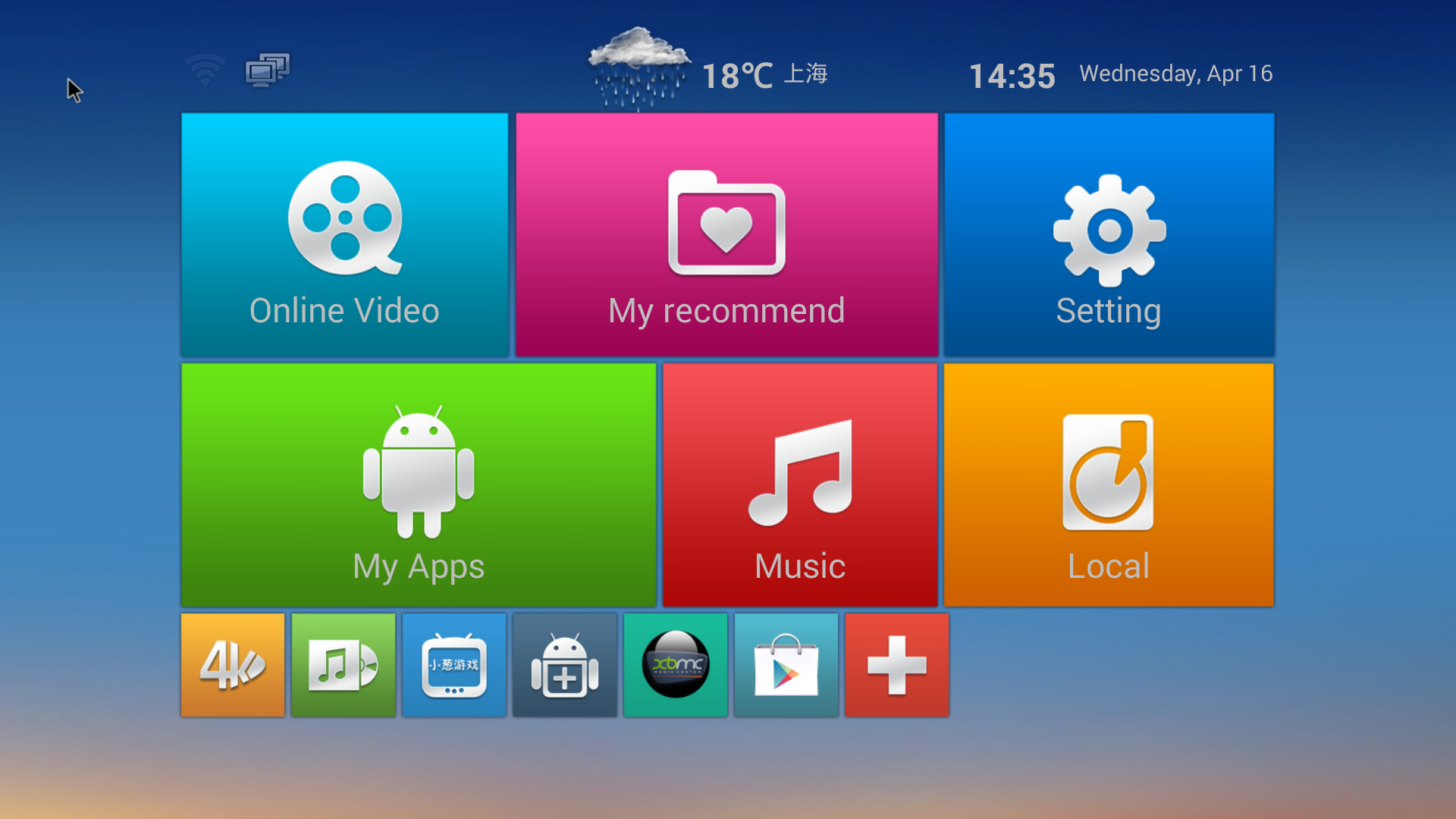
M8 Home Screen
At the top of the screen are status icons (Ethernet / Wi-Fi / Bluetooth / Storage), weather (only Chinese cities are available in settings), and the time and date. There are also six main menus: Online Video (one Chinese app), My Recommendations (favorite apps), Settings. There are also shortcuts at the bottom of the screen to the 4K player, Music, the Chinese IPTV app, and the APK installer by default. You can add and remove those you want as you like, as you can see in the screenshot. The UI has a resolution of 1920 × 1080.
In the "Settings" menu, you can access settings also presented in Metro style with four submenus: Network, Display, Advanced, and Other.
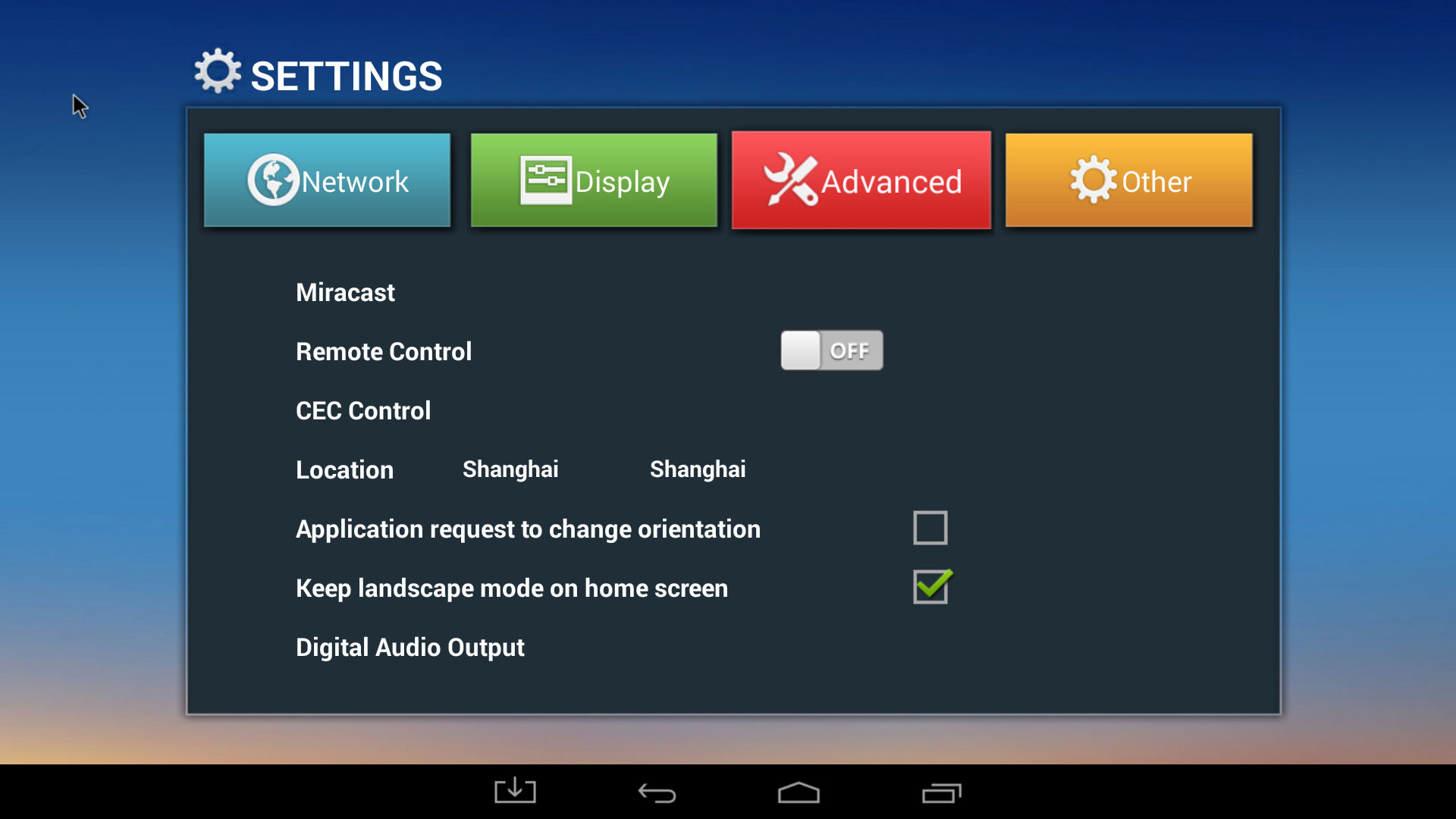
Advanced Setup
Network settings allow you to choose Ethernet or Wi-Fi connections, display settings: auto-detect resolution, UHD/4K output support, the ability to hide or show the status bar, adjust the display size, and a screensaver. I have the status bar enabled, which is more convenient to use; the bar automatically hides when playing videos. The advanced menu will allow you to start Miracast (sources only, not the display), enable the remote control program (RemoteIME.apk), set CEC controller settings, set your location (only Chinese cities are available), set the screen orientation, select digital audio output (PCM, SPDIF pass-through, HDMI pass-through). The "Other" button gives some details about the Android version (4.4.2) and kernel version (10.03.10). You can access the standard Android settings by going through Settings->Other->More settings. The Android settings in this window are based on the phone's interface, not the tablet's, which requires a few more clicks.
You can check the UI settings in the video below.
I used the 1080p HDMI output during my tests, which was automatically detected when I turned on the device. But if you switch to manual mode, you can also see 4K video output at 24, 25, and 30 Hz, as well as 4K SMPTE. There is also an AV output, which is automatically used if HDMI is not detected. This works well including stereo audio output. If you are using the AV output, you can go to the settings menu to choose between 480cvbs and 576cvbs. To switch back to HDMI, connect the cable and select the input on the TV. Restarting is not necessary.
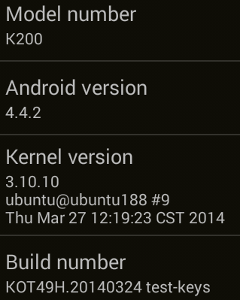
5.75 GB of space is reserved for the user with 8 GB of NAND flash memory, and right after the software update, there is over 5 GB of free space on one partition. The software is rooted. Looking in the "About MediaBox" section shows the model number is "K200", and just like in the Custom Settings section, it shows that Android 4.4.2 runs kernel version 3.10.10.
It is possible to install most applications from the Google Play Store, including Facebook, ES Explorer, Root checker, Antutu, Quadrant, Vellamo, Candy Crush Saga, etc. ... The Sixaxis Controller failed to install due to a bug in Google Play.
As mentioned before, there is no power button on the device, and all you can do with the IR remote is enter and exit standby mode. The only way to actually turn it off is by unplugging the power. I checked the case temperature after starting a 3D game. The top part is 55 ° C, the bottom 43 ° C, with a room temperature of around 28 ° C.
As expected, the results are good, the system responds very quickly, but the software is not as stable as As expected, it froze several times, requiring a power cycle restart. This happened while running an in-game benchmark and while taking a screenshot. In both situations, the device reportedly turned itself off (the blue LED turned off), possibly due to overheating.
Video Playback
XBMC 13.0 beta 1 is installed on the device, so I used XBMC for video testing. I only used MX Players in case of errors and to double-check Dolby/DTS audio. Videos are played from SAMBA on Ubuntu 13.10 via an Ethernet connection. I had no problem configuring SAMBA in either XBMC or ES File Explorer.
I started with videos from www.samplemedia.linaro.org, plus a few videos with the H.265/HEVC codec from Elecard:
MPEG2 codec / MPG container, 480p/720p/1080p — OK.
MPEG4 codec, AVI container 480p/720p/1080p — OK
VC1 codec (WMV), 480p/720p/1080p — OK
Real Media (RMVB) — Failed. Nothing is happening.
WebM / VP8 – 480p/720p/1080p is – OK.
H.265 codec / MPEG TS container, 360p/720p/1080p
XBMC - only then the sound didn't work.
MX Player - plays video and sound, but everything is in slow motion.
I also tested some videos with high bitrate:
ED_HD.avi (1080p MPEG-4 - 10Mbps) - No image, only sound.
big_buck_bunny_1080p.avi (1080p H.264 - 12 Mbps) - OK. No audio issues / video sync issue.
h264_1080p_hp_4.1_40mbps_birds.mkv (40 Mbps) - OK
hddvd_demo_17.5Mbps_1080p_VC1.mkv (17.5Mbps) - Video is supported, but some frames are dropped.
I also tested the commonly used audio codecs below, using PCM in XBMC:
AC3 - can decode audio, but the movie was very slow
Dolby Digital 5.1 / Dolby Digital 7.1 - OK
TrueHD 5.1 and 7.1 - OK
DTS-MA and DTS-HR - OK
MX Player, did not produce any sound when playing these files using the H/W decoder.
Sintel-Bluray.iso, a free Blu-ray ISO file, plays fine in XBMC, so it is possible to navigate between chapters of the movie.
I tested several 4K videos in MX Player (XBMC not working - only sound):
HD.Club-4K-Chimei-inn-60mbps.mp4 (60 Mbps) - OK
Sintel.2010.4K.mkv - Frequent pauses (buffering?) during playback after enabling S/W decoding for AC3 5.1 audio. No sound when using H/W audio decoder.
Beauty_3840x2160_120fps_420_8bit_HEVC_MP4.mp4 - slow motion video playback in MX Player...
I I also tested several AVI, MKV, FLV, and MP4 videos, everything works, except for one FLV which only had audio output.
Wi-Fi Performance
Using ES File Explorer, I managed to transfer a 278MB file between SAMBA and the internal flash memory, and back, repeating the test three times. On this device, there is a clear difference in transfer performance between Samba and the flash memory and in the reverse direction. Transferring the file between the flash memory and SAMBA took between 03:16 and 04:54, but in the reverse direction it took between 05:51 and 07:47. The time tr




 RSS Feed